
If you are working with a RelaxNG schema (or comparable schema written in an XML schema language), you can associate your XML file with that schema so that Oxygen can parse the schema, check your file for validity, and prompt you by suggesting the allowed elements and attributes at any given point in the XML tree.
Method 1: Open a template in Oxygen
Oxygen XML Editor has partnered with various XML languages (DocBook, TEI, and others) to create and distribute templates that are already in the namespace of a language and associated with a schema.
Go to File / New … / Framework templates and you’ll see lots of folders for different XML languages. If you want to create a TEI-XML document, scroll down to the TEI P5 folder. Inside that folder are various templates for different types of TEI documents. If you were to select All [TEI P5], you would be creating a template TEI-XML file that is associated with the schema for the entire TEI language.
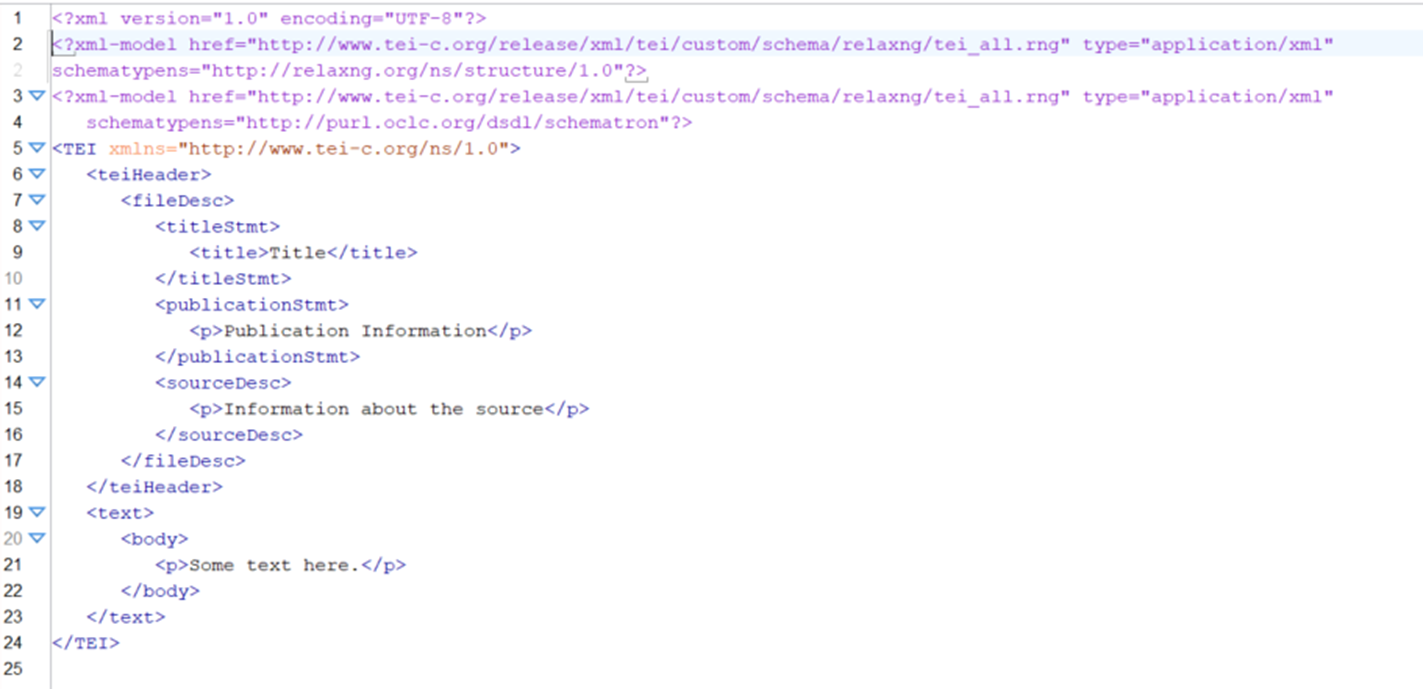
Notice that it already has a schema association in a processing instruction (tei-all.rng, coloured purple in Oxygen). It’s actually pointing to a URL where the schema is publicly available. Notice the namespace declaration on the root element (https://www.tei-c.org/ns/1.0).
Method 2: Download schema and save it to your computer
XML languages usually publish their schemas. The whole point of XML is open exchange of standardized information! Find and download the schema. Create a folder for your XML file(s) and save the schema to that folder. For a simple project with one XML file, save your XML file and your schema to the same folder. For more complex projects, you will probably want to make a folder just for your schema.
To associate your XML file with the schema you have downloaded and saved, go to Document / Schema / Associate Schema … (see screenshot below).

Once you click on Associate Schema … , you’ll see a pop-up window that you need to fill in.

Use the folder icon to navigate to the schema that you just saved to your computer. Be sure to check “Use path relative to file location.”
Once you have created a folder structure and associated the XML file with the schema, don’t move the schema.
Method 3: Use a URL
You can also point directly to the URL of a schema that is published on the internet. Follow Method 2, but then copy the URL into the URL: box instead of navigating to a local schema.
If you use this method, you must be connected to the internet for Oxygen to be able to validate your file.
 Janelle Jenstad